Control Panel Overview
The CloudRaya Control Panel is the main workspace where you manage projects, deploy infrastructure, and monitor all your cloud resources.
After completing account setup, billing preparation, and project creation, this page helps you understand the overall layout of the Control Panel so you can confidently start using CloudRaya services.
1. Working Inside a Project
All CloudRaya resources are created and managed inside a Project.
At the top of the Control Panel, you will see the Active Project selector. This indicates which project you are currently working in.
From here, you can:
- Switch between existing projects
- Create a new project
- Ensure that resources are deployed in the correct project context
Every Compute, Network, and Storage resource you create will belong to the currently active project.
📄 See: Projects Overview
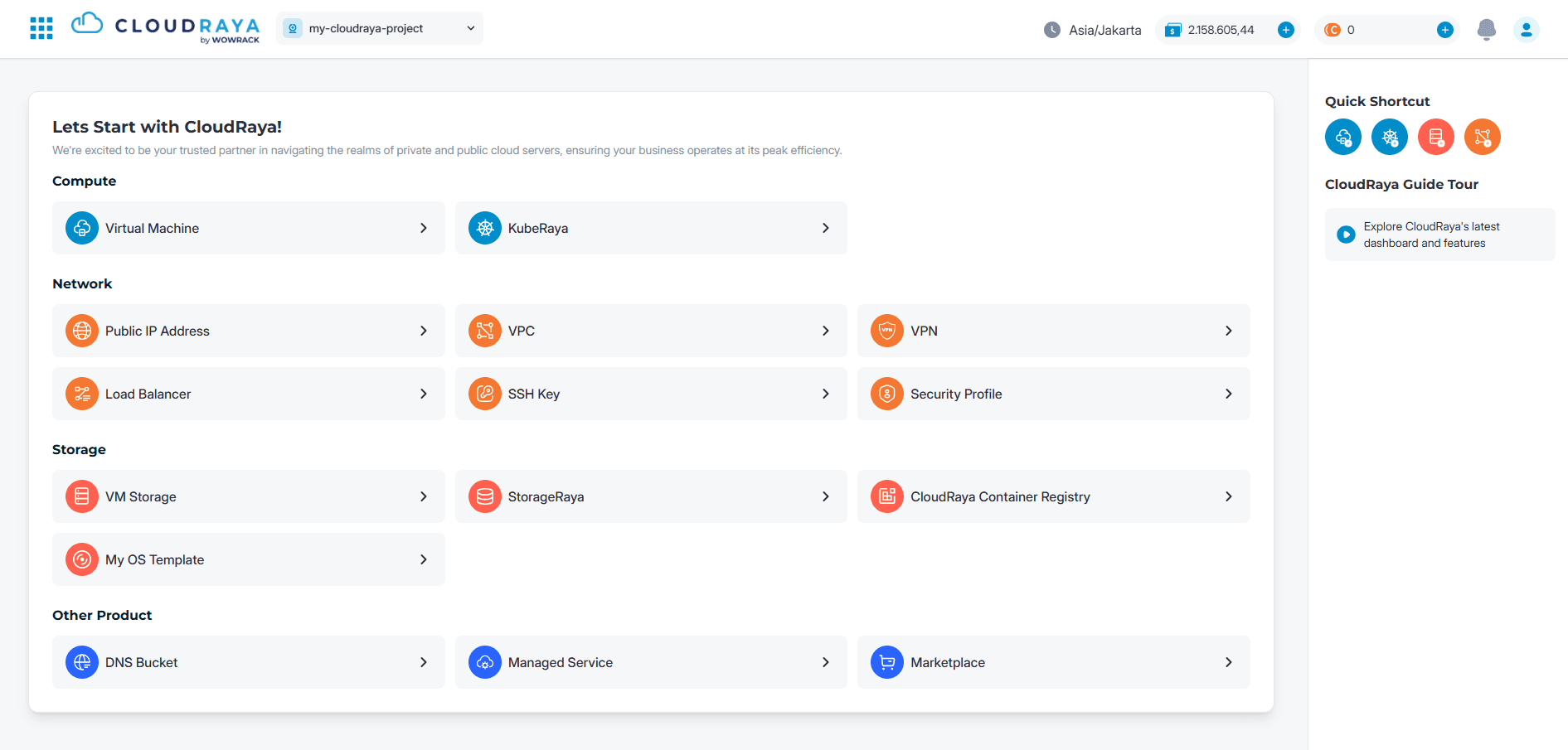
Control Panel Home – Visual Overview
The screenshot below shows the CloudRaya Control Panel Home after a project is selected.
From this page, you can quickly access Compute, Network, Storage, and other CloudRaya services.
2. Main Navigation Structure
CloudRaya services are organized into several main categories to help you find and manage resources easily.
Compute
Used to run applications and workloads.
- Virtual Machine
- KubeRaya
Network
Used to control connectivity and security.
- Public IP Address
- VPC Network
- VPN
- Load Balancer
- SSH Key
Storage
Used to store data, images, and container artifacts.
- VM Storage
- StorageRaya
- CloudRaya Container Registry
- My OS Template
Other Products
Additional services that support your infrastructure.
- DNS Bucket
- Managed Service
- Marketplace
Each menu leads to a dedicated service page where you can create, configure, and manage resources in detail.
3. Home Dashboard Area
The Home Dashboard provides quick access to commonly used services.
In this section, you will find:
- Shortcut cards for Compute, Network, and Storage services
- Entry points to start creating resources quickly
- Helpful onboarding content for new users
Think of this area as a starting point to access CloudRaya services without navigating deep menus.
4. Account, Billing, and Usage Access
The top-right area of the Control Panel provides access to account and billing-related features.
From here, you can:
- View your Cloud Credit and Coins balance
- Access Cloud Credit History
- View invoices and monthly usage history
- Manage profile settings and security
These tools help you monitor spending, review usage, and manage your account efficiently while using CloudRaya services.
📄 See: Billing and Balance Overview
5. Notifications and Guidance
The Control Panel also includes features to help guide and inform you.
- Notifications provide updates related to your account or system activities
- Guide Tour helps you get started by directing you to CloudRaya documentation.
- Quick Shortcuts offer fast access to commonly used actions
These tools are especially helpful when you are new to CloudRaya or exploring new features.
Next Steps
You are now ready to start deploying infrastructure on CloudRaya.
-
Deploy Virtual Machines or Kubernetes clusters for your workloads.
-
Create Object Storage, VM Storage, Container Registry, and snapshots.